Designing a Flutter app for iPhone Duo
Apple says an app built from standard components adapts to iPhone Duo with little work. A Flutter app draws its own components, so I did that work by hand, first for a client app and then in a small open-source demo.
Apple's guidance for iPhone Duo has a reassuring sentence near the top: "If your app uses standard system components and you've designed it to support resizing, it automatically adapts to the device's poses with little adjustment required."
A Flutter app does not use standard system components. It draws its own app bar, tab bar and dialogs into a single view that iOS treats as one opaque rectangle. What that sentence promises happens inside UIKit, and none of it reaches a Flutter app. So when a client asked for their Flutter app to be ready for the device, the work turned into reading what UIKit does for native apps and doing the same by hand.
I can't show the client's app, so I rebuilt the parts that mattered in a small demo called Recital: a public-domain poem each day, with volunteer readings from LibriVox. Every screenshot here comes from it, on the iOS 27.1 simulator with Flutter 3.47.7, and the code is on GitHub (linked at the end).
The device#
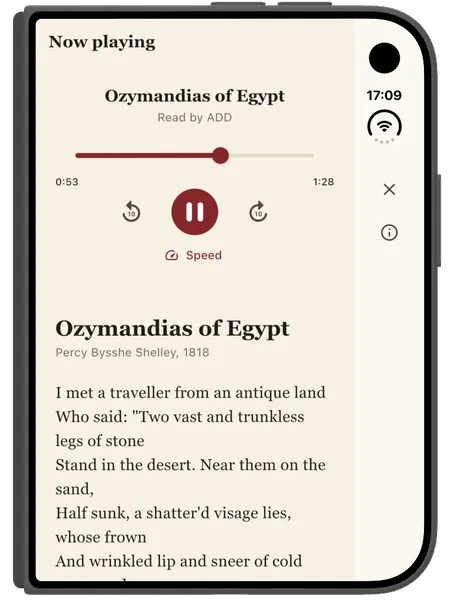
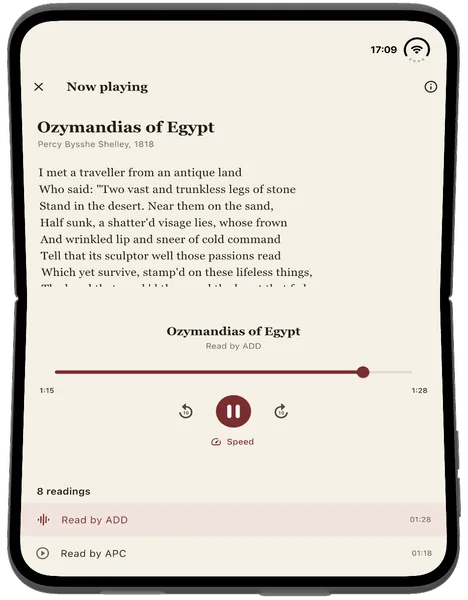
iPhone Duo has two displays. Closed, you use the outer one, which is wider and shorter than any other iPhone: 466 by 678 points in the simulator. Open, you get the inner one, 951 by 669 held wide like a book, or 669 by 951 turned upright. Between fully open and closed there are two poses Apple names and expects you to consider: partially open like a book, and set down on a table with the fold running across, like a small laptop.
What Apple asks for#
The guidance is short and opinionated. It comes down to four requests.
Two layouts, not five. Supporting the poses "doesn't mean designing a custom layout for each one". Design one layout for compact width, the outer display, and one for regular width, the inner, and let them stretch. Avoid "fixed widths, breakpoints, or any metrics tied to a specific screen", and do not decide layout from the device or the orientation.
Bars on the side. Closed, and open in landscape, toolbars, tab bars and navigation controls move out of the top and bottom into a column along one edge, next to the status bar and the Dynamic Island, which now run down that edge too. The top of the column is for Back or Close, then prominent actions; the tab bar sits at the foot. Only the inner display held upright keeps horizontal bars. The column stays on the same physical side in right-to-left languages, because it is aligned with the hardware.
Nothing interactive in the fold. When the device is partially open, the crease is a reserved region, and Apple's components step around it: alerts, sheets and menus move to one side, split views even out their columns at the fold. Scrolling content does not need to avoid it. Buttons do.
More hierarchy on the inner display, not a bigger phone. "You don't want just a stretched out iPhone app." Mail shows the list and the message side by side. Podcasts shows Now Playing beside its transcript. Apple calls the general pattern an arrangement: a primary and a secondary view that sit side by side when there is room and meet at the fold when it is folded.
Underneath all four is a request I kept coming back to: keep the state and the functionality the same in every pose. People open and close the device in the middle of things.
What Flutter sees#
Before designing anything, I logged what a Flutter app is told about the device.
The window's size and safe area
Reported in every pose. The side column is an 84-point inset on its edge.
MediaQuery
The screen the app is on
Read once at start; stays the outer display after the device opens.
The window scene's screen
Open, closed or folded
Not reported.
UIHingeInteraction
Where the fold is
Not reported: MediaQuery.displayFeatures is always empty on iOS.
UIView.reservedRegions
Which side the bars go on
Not reported.
UITraitCollection.verticalBarEdge
The window's size and its safe area are reported correctly in every pose, and the side column shows up as an ordinary 84-point safe-area inset on the right. That is most of what layout needs.
The rest is missing. PlatformDispatcher.displays reports the outer display at
start and never changes: the engine reads UIScreen.mainScreen once, a property
Apple has deprecated and calls ambiguous on a device with two displays. So any
"is this a tablet?" check based on the screen gets the inner display wrong.
MediaQuery.displayFeatures, which Flutter fills on Android foldables, is
always empty on iOS. There is an open proposal
(flutter/flutter#192515) and
a draft engine pull request on hold until the team has a device.
What fills the gap is about 150 lines of Swift: an invisible view added to
Flutter's view that reads the reserved regions, the vertical bar's edge and the
scene's screen in layoutSubviews, plus a UIHingeInteraction
for the hinge.
UIKit re-runs layout code when the regions it read there change, which is the
only change notification iOS 27.1 offers for them. The view sends a map over an
event channel, and the Dart side turns it into one small value that the rest of
the app reads.
Bars on the side#
Flutter's AppBar and bottom navigation bar stay where Flutter draws them.
Closed, that means the app bar runs the full width, under the Dynamic Island and
the clock that now sit at its right end, and the tabs stay along the bottom,
where Apple has just taken the tab bar away.
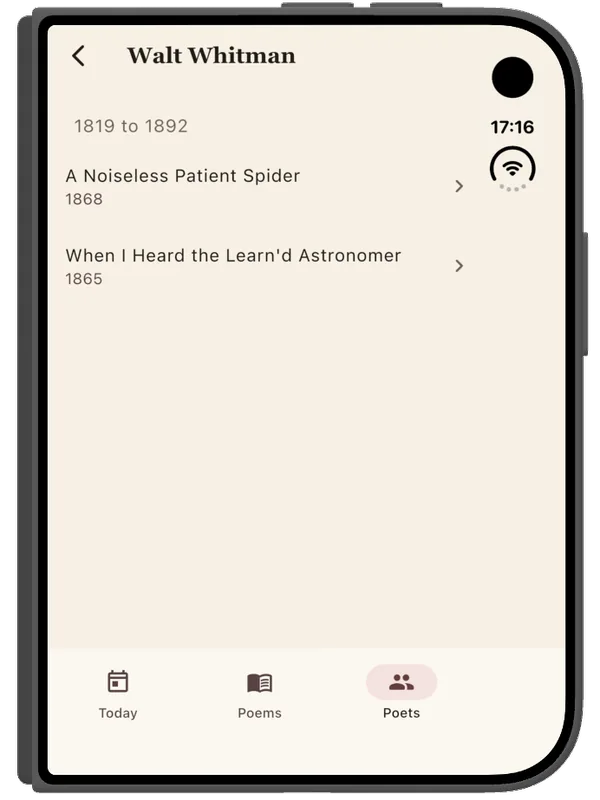
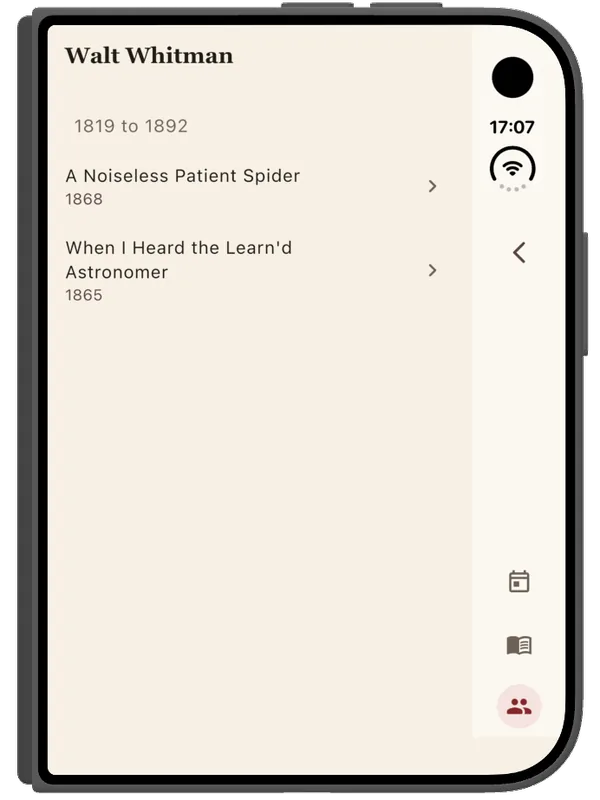
The fix is one widget that every page uses instead of Scaffold with an
AppBar. Where bars are horizontal it is exactly that scaffold. Where the
platform says bars go on the side, it lays the page out beside an 84-point
column, puts Back and the icon actions at the column's top below the status
bar, and keeps a slim title row over the content. The shell draws the tabs at
the column's foot.
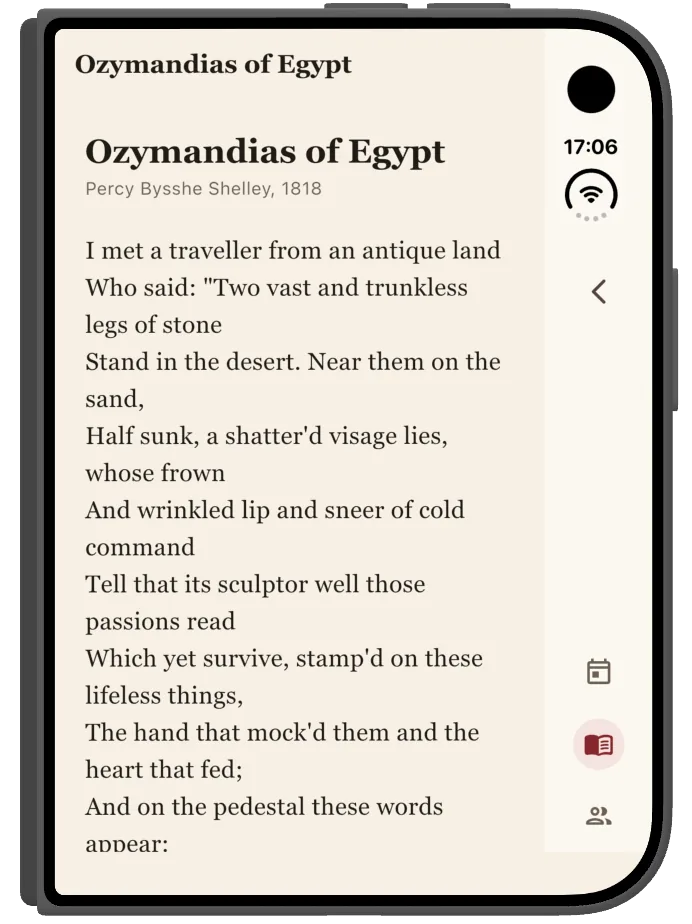
-
1
Status bar and Dynamic Island
The system's, moved into the column. The island grows down it for Live Activities, so the column's top is not a constant.
-
2
The page's buttons
Back first, then icon actions, as Apple orders them. Text buttons stay in the title row.
-
3
The tabs
At the column's foot, as symbols, each label its tooltip.
-
4
The page
Laid out beside the column rather than under it.
Two details took more thought than the layout. The column's top is not a constant: the status bar and the Dynamic Island are reported as an occlusion region, and the island grows down the column for Live Activities, so the column starts below the lowest occlusion that overlaps it. And not everything belongs in the column. Apple keeps text items in the horizontal bar, because a vertical bar has a fixed width, so in the client app a text button stays in the title row while the icon buttons beside it move. The tab labels became tooltips for the same reason. Apple's own vertical bars are symbols only, and the guidance does not say what should happen to a label. It is one of several places where the guidance is thinner than it first looks.
Two layouts, decided by width#
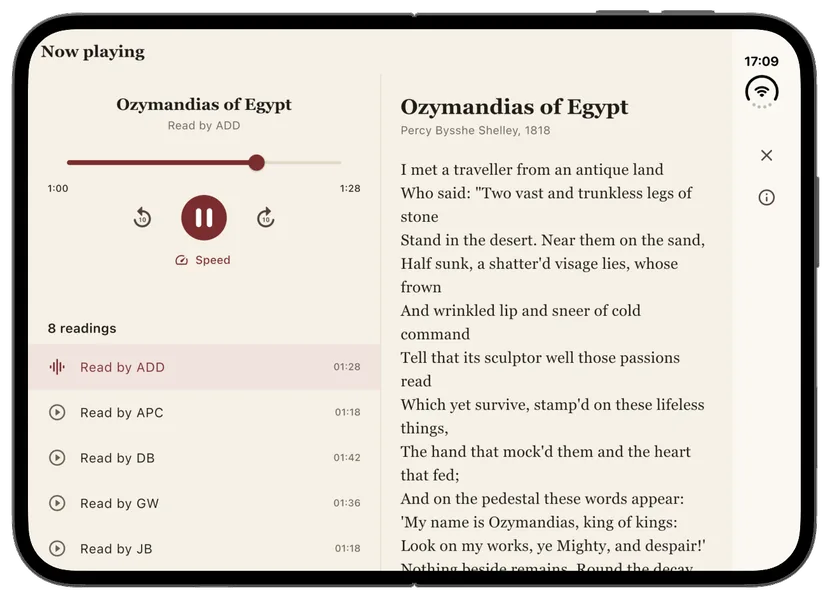
The inner display is where "not a stretched iPhone app" applies. Recital's Today page is a poem and a list of its readings. On the outer display the readings follow the poem; on the inner display, held wide, they sit beside it.
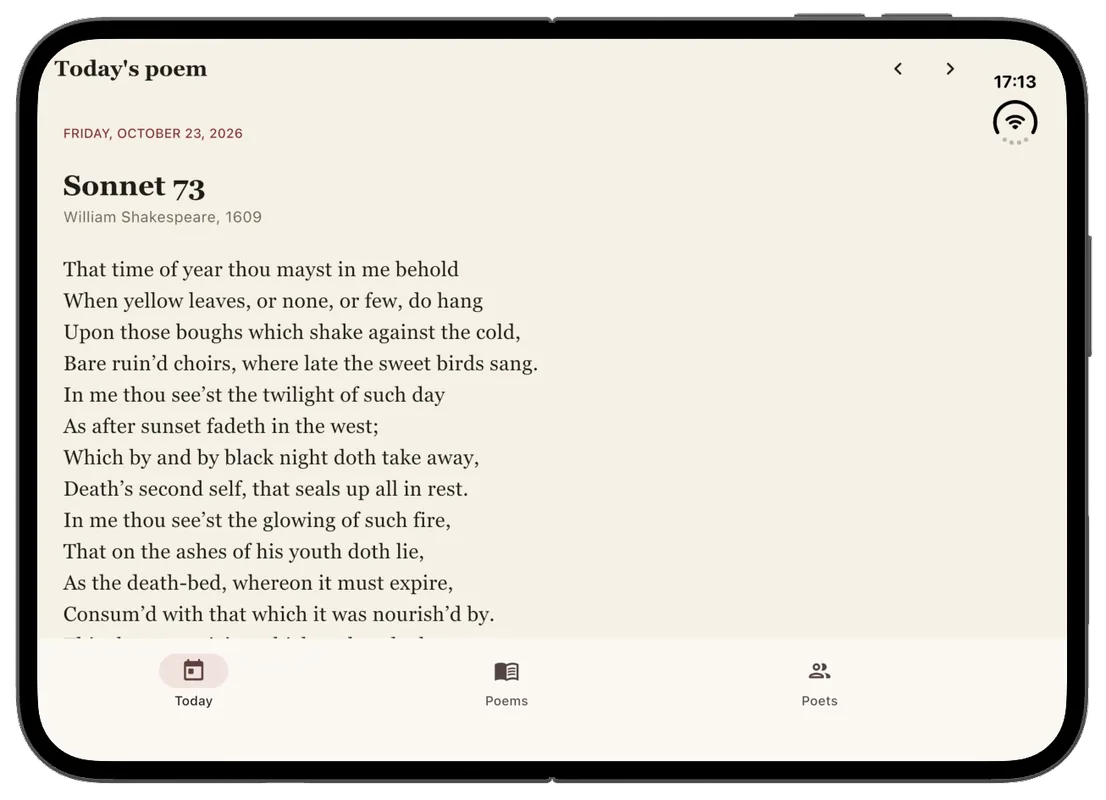
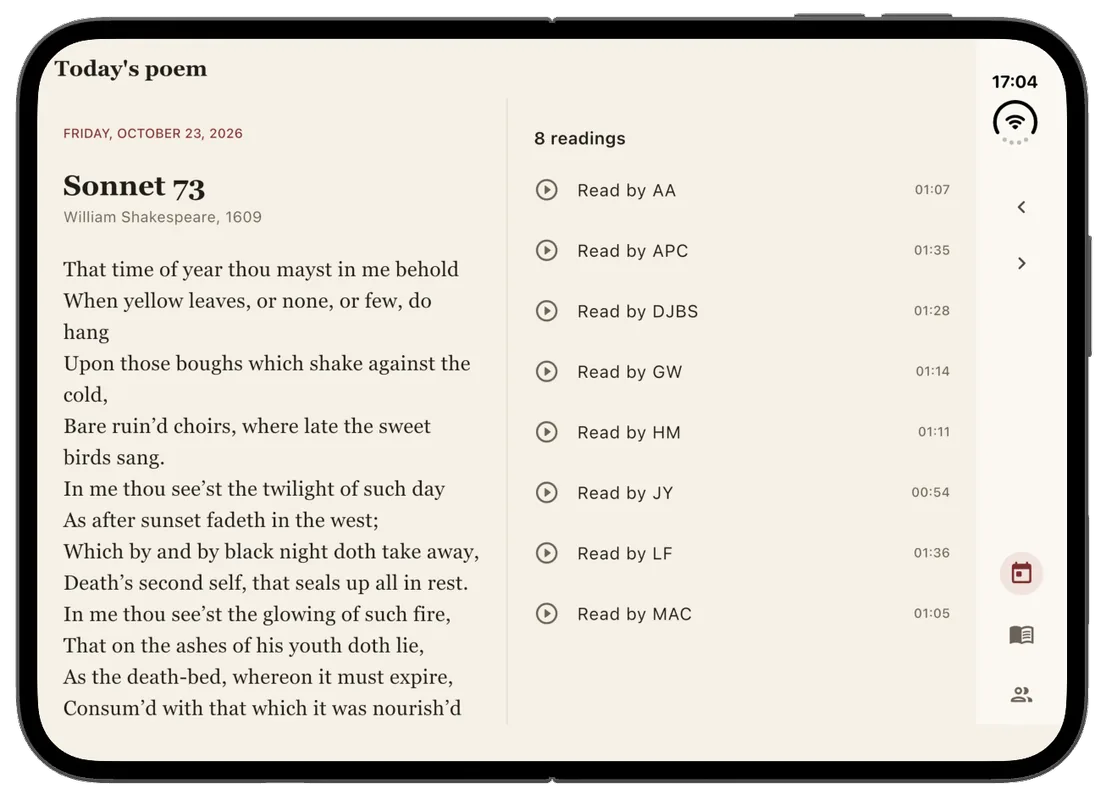
The split is a small widget modelled on Apple's arrangement. It puts the two panes side by side when the window is wider than tall and there is room, makes them meet exactly at the fold when the device is folded like a book, and falls back to the phone layout everywhere else. It decides from the window it is given, never from the device, which is what keeps it honest when the app is not full screen. Lists that go two to a row keep the fold between the columns, which is why Apple asks for an even number of columns in a grid.
The fold#
The fold was the easiest part to get mostly right and the hardest to get completely right.
Mostly right came from one observation: Flutter already knows how to keep a
dialog off a fold, because Android foldables taught it. Material's dialogs,
sheets and menus lay themselves out inside DisplayFeatureSubScreen, which
picks one side of any fold listed in MediaQuery.displayFeatures. iOS never
fills that list, so the app does: while the hinge says partially open, a widget
at the root adds the fold to MediaQuery, and the dialogs open beside the crease
instead of across it.
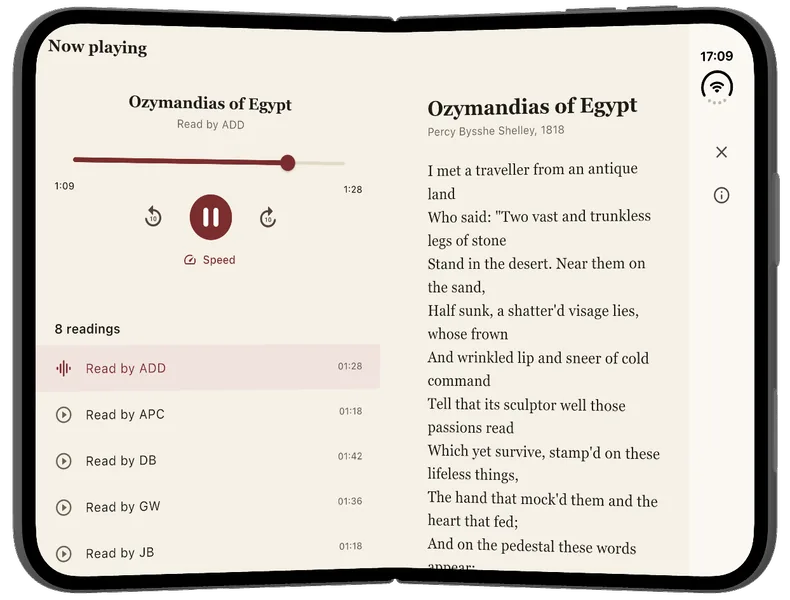
Which side is a design choice, and Apple makes it explicitly. Folded like a book, alerts go to the trailing half, close to where the outer display will show them when the device closes. On a table, alerts go to the upper half, to be read from a distance, and controls go to the lower half, which rests on the table and does not rock when tapped. A fixed anchor in a far corner gets both right for dialogs, and the opposite corner gets both right for sheets of choices.
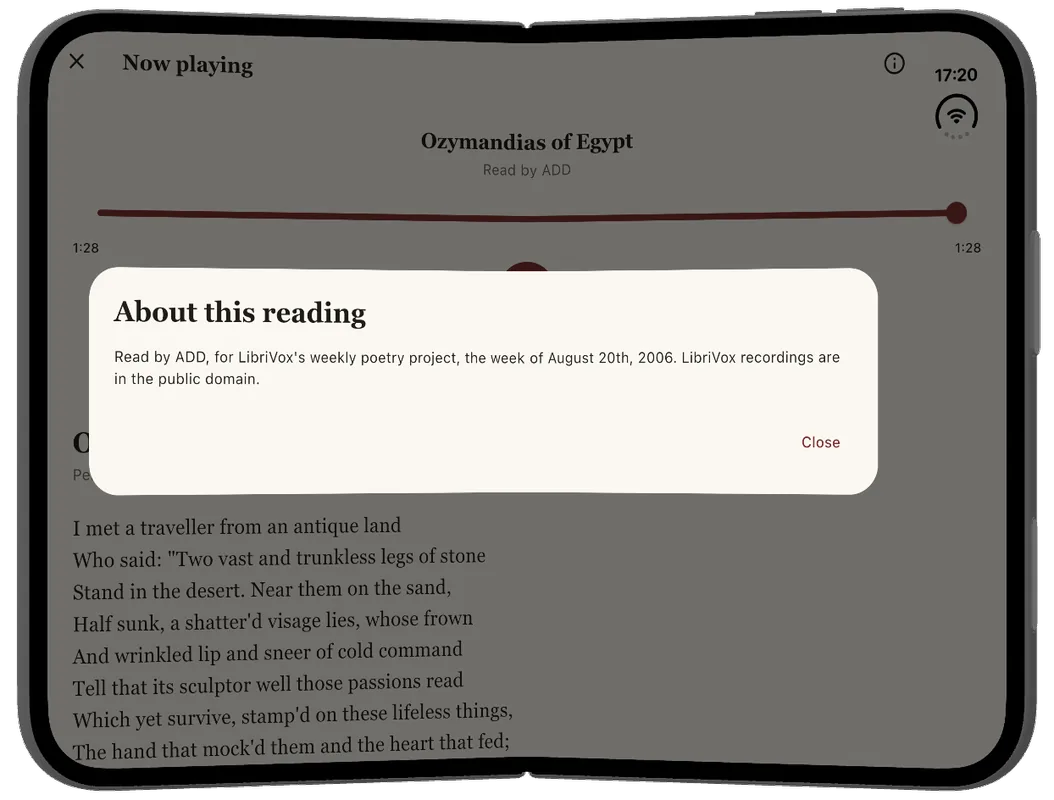
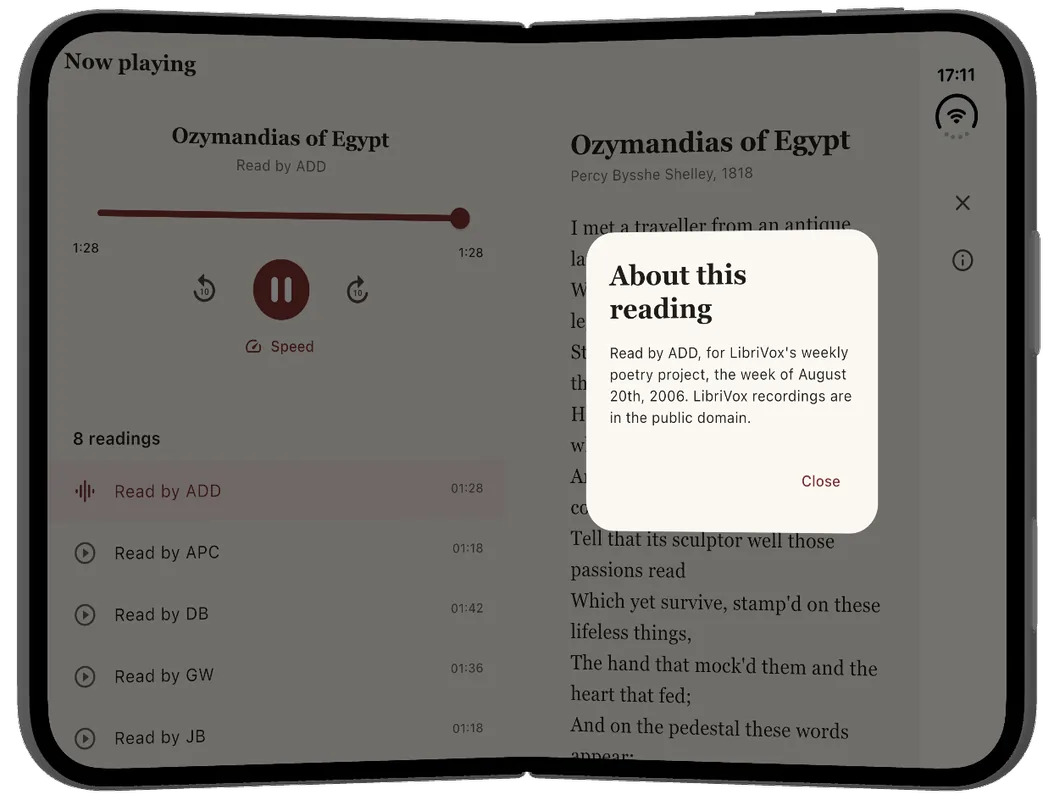
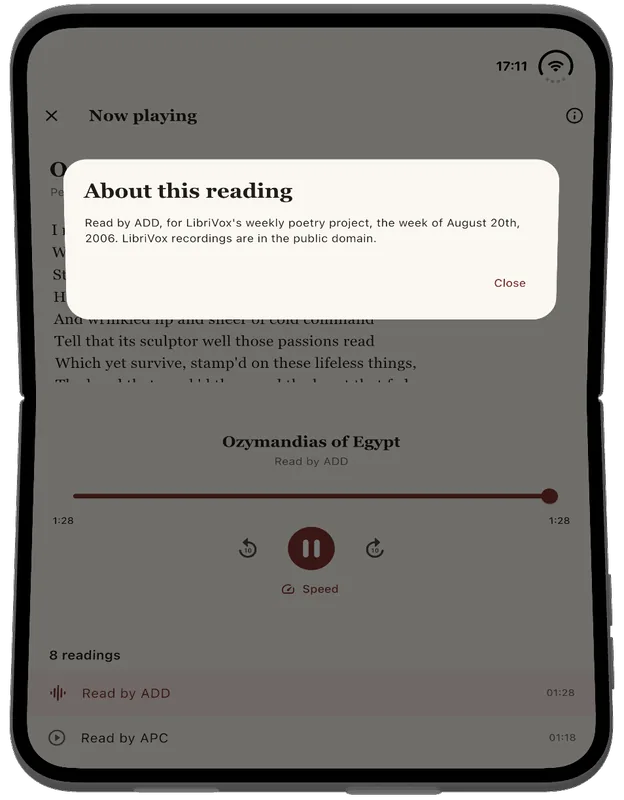
Completely right meant the layouts with two panes. On a table, the split puts one pane above the fold and one below, if the screen offers one. Recital's player uses that: the poem goes on the upper half, where you can read along from across the room, and the controls go on the lower half, under your hand.
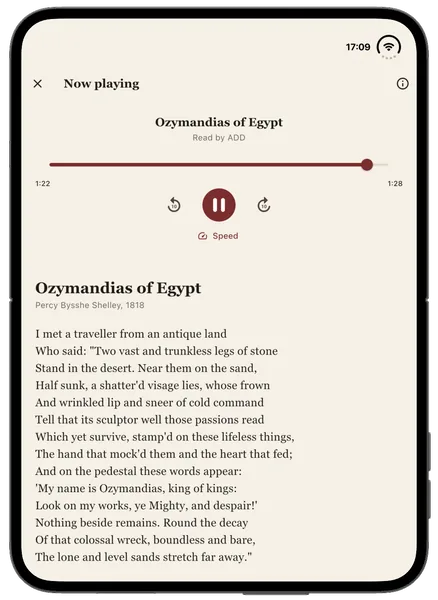
The pane that leads goes on the leading side, so in a right-to-left language the primary pane is on the right, where a native split view puts its sidebar, while the side column stays where the hardware puts it. That would have been easy to get wrong: the fold is physical, the reading order is not.
The surprise#
The client app locks itself upright on phones, as many apps do. On iPhone Duo that went wrong in a way I did not expect.
Apple says plainly that "the inner display doesn't honor your supported interface orientations". I read that as: whatever the app asks, the inner display lays it out for the way the device is held. On the simulator that held for the orientations listed in the app's Info.plist. It did not hold for a lock the app set at run time. Opened while the app was locked upright, the inner display kept it upright, so with the device held wide the whole interface lay on its side, and set down on a table it was upside down. Asking for every orientation afterwards did not turn it back; iOS answered with "The current windowing mode does not allow for programmatic changes to interface orientation", the same answer an iPad gives.
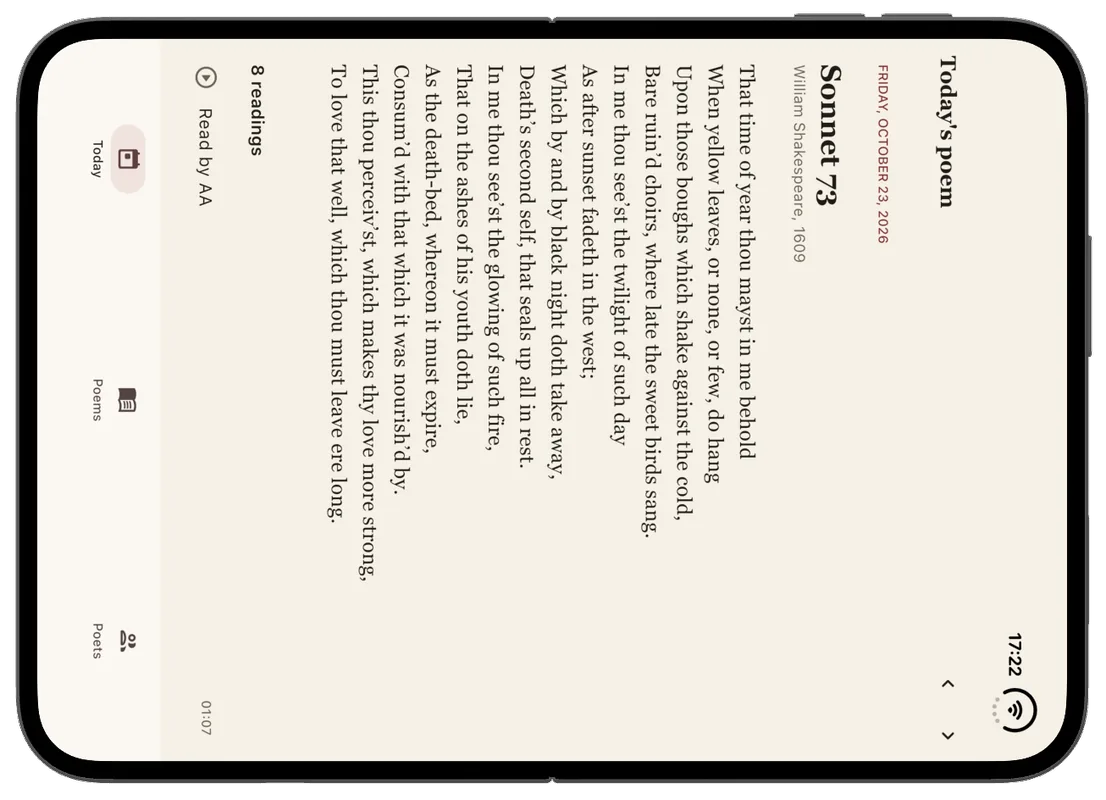
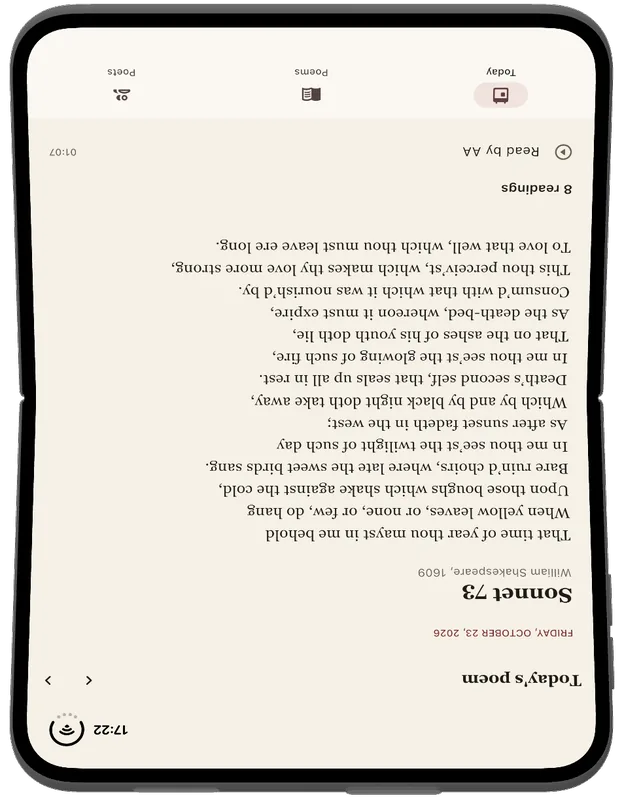
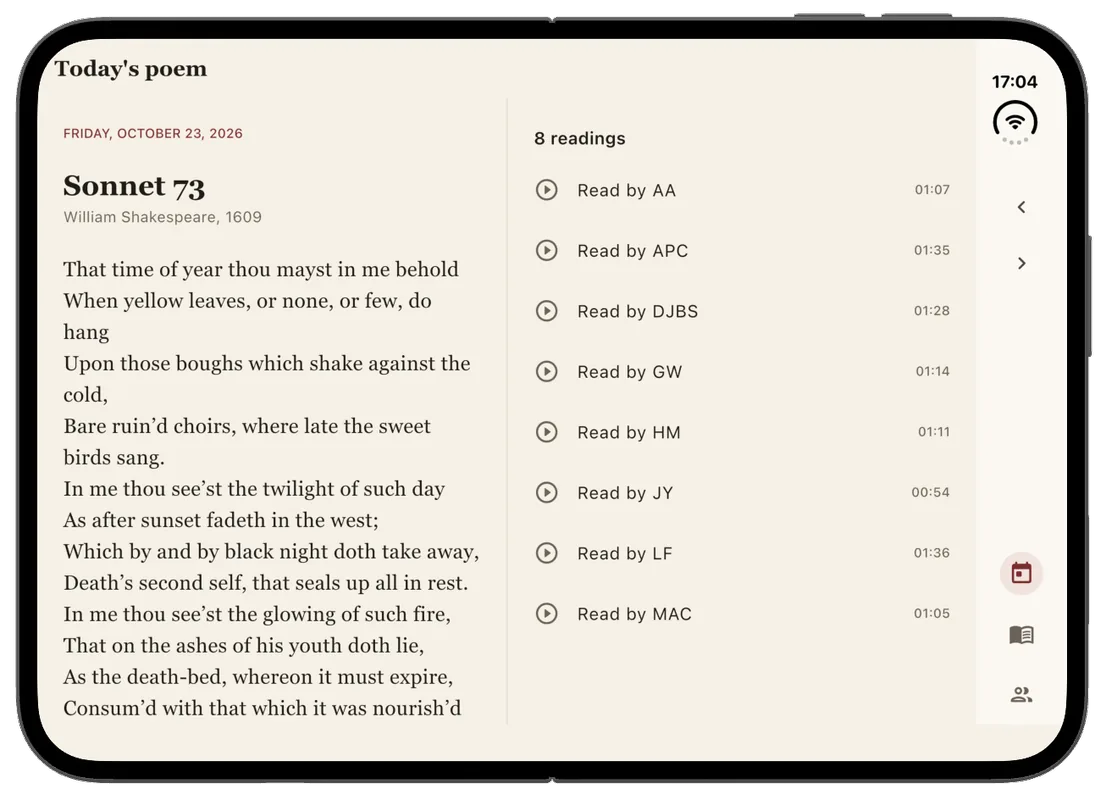
The lock has to be off before the device opens, and nothing tells an app it is about to be opened. So on iPhone Duo the app does not lock at all. It turns with the device on both displays, which Apple suggests anyway for a device people stand up like a tent. I have not found this behaviour described anywhere, so I would treat it as the simulator's until someone shows otherwise.
Getting every pose on screen#
Xcode 27.1 replaces the Simulator app with Device Hub, and its iPhone Duo has
buttons under the device for closed, partially open, open and rotate. simctl
has no command for any of them, so a script cannot change the pose. I wanted
every screen in every pose without clicking through them, so I wrote a short
Swift tool that presses those buttons through the macOS accessibility API, and a
script that walks the app's screens tour through the five poses and takes a
screenshot of whichever display is in use.
Two things about that setup caught me out. A simctl screenshot follows the
app's interface orientation, not the device's: an app lying on its side gives
you a perfectly upright screenshot, which is how the surprise above hid from me
at first. To see the device the way a person would, capture Device Hub's window
instead; the images in this post are cropped from it. And Device Hub has no
window at all while the Mac is locked, so the buttons vanish and a run left
overnight stops at the first pose change.
Where the guidance is thin#
The guidance is good about the system's own components and quiet about everything a Flutter app has to rebuild. I could not find an answer for where a bottom accessory like a mini player goes when the bars move to the side, what a tab bar's labels become in a vertical bar, which way facing pages should run in a right-to-left interface, or the exact side of the column on the outer display in each landscape rotation. I made a choice for each and wrote it down as mine, not Apple's.
Recital is on GitHub at
github.com/BiAksoy/recital, with the Swift
plugin, the layout widgets and the pose script. If I were starting again, I
would go in the same order: report the device to Dart, move the bars, put the
fold into MediaQuery so the dialogs follow, and only then design the two-pane
layouts, because they need the most judgement and the least code.